

Separate objects with instance mode
In a segmentation dataset, objects of the same tag that touch each other can melt into one mask, and a model trained on that cannot count them or tell them apart. Instances keep each object separate: each biscuit of a pack is its own mask, however many strokes it takes to paint it.
What you will learn
- The difference between the «Stroke» and «Instance» modes of the brush
- How to paint one object in several strokes, and start the next one
- How to split an instance in two, and merge two into one
Before you start
You need a segmentation or anomaly detection dataset with a tag. The brush is explained in Label segmentation masks with brush and polygon.
1. Choose the brush in instance mode
Choose «Draw». In the card next to the tools, «Instance mode» decides how strokes become masks: with «Stroke», every stroke is a mask of its own; with «Instance», strokes join into the same mask, the same object, until you start a new one.
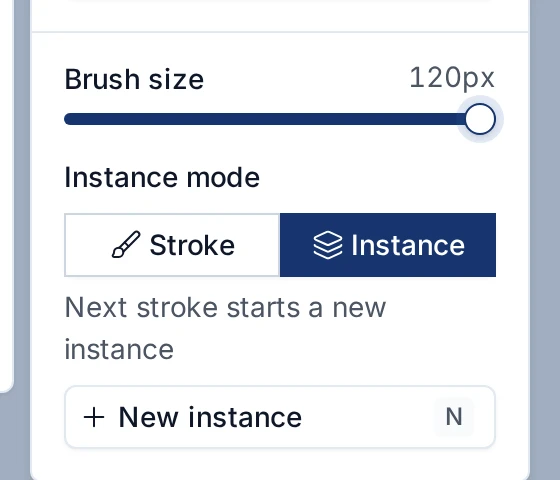
2. Paint an object in several strokes
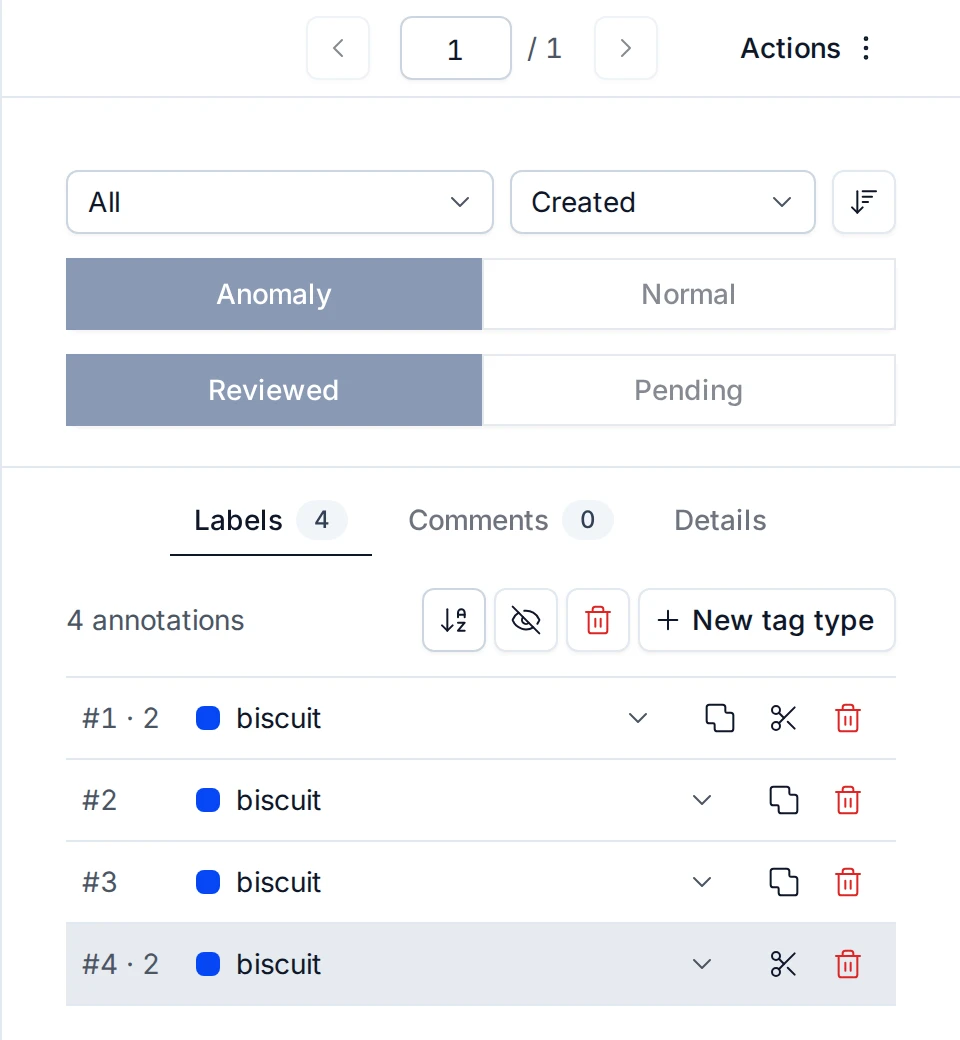
Paint the first object. It may take several strokes: in «Instance» mode they all join the same instance. The card says which instance you are painting, and the «Labels» tab lists each instance with its number and, after a dot, its strokes.
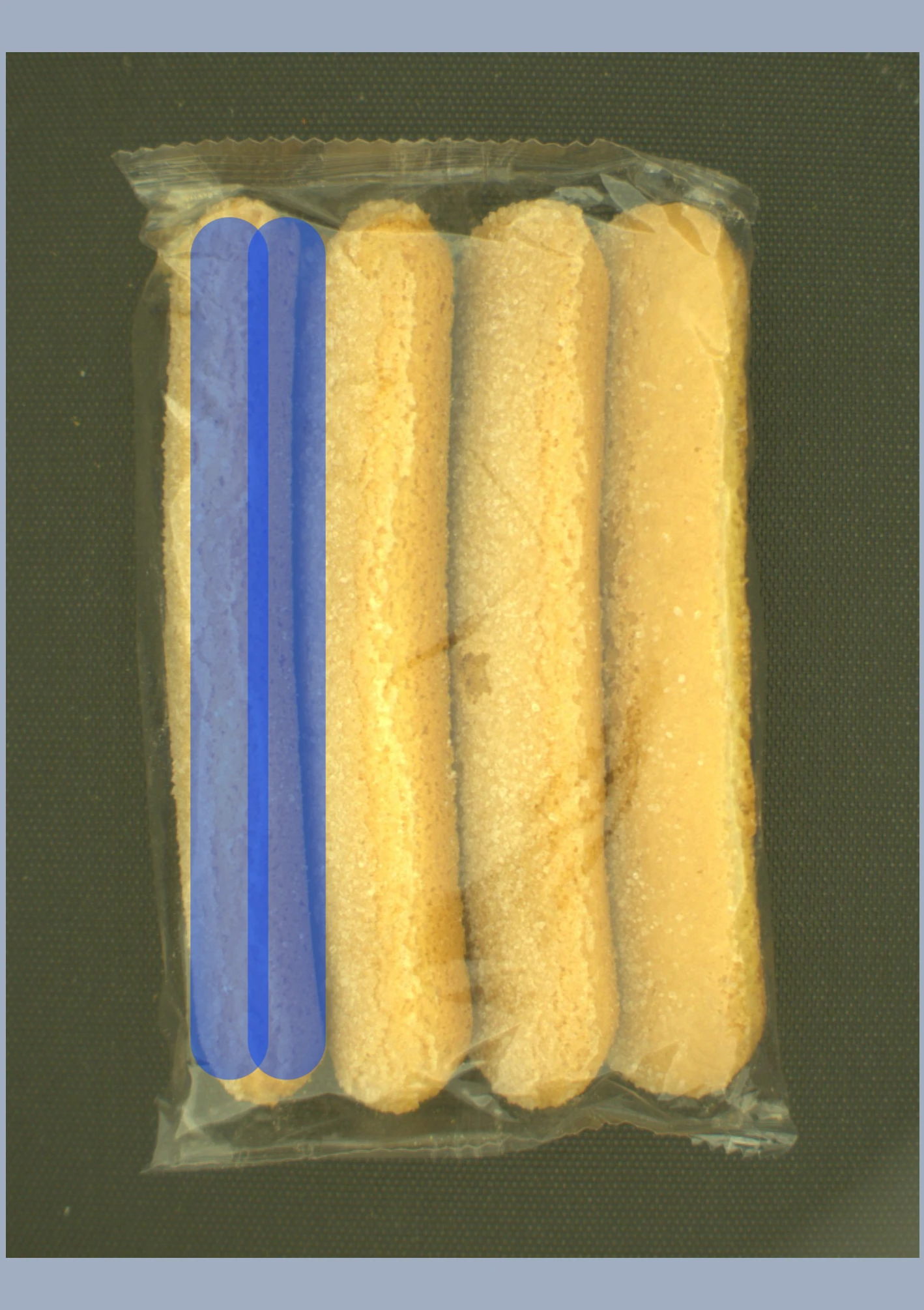
3. Start the next object
Before the next object, click «New instance» or press N. The next stroke starts instance #2. Q and W go to the previous and the next instance, to paint more into one you already have.
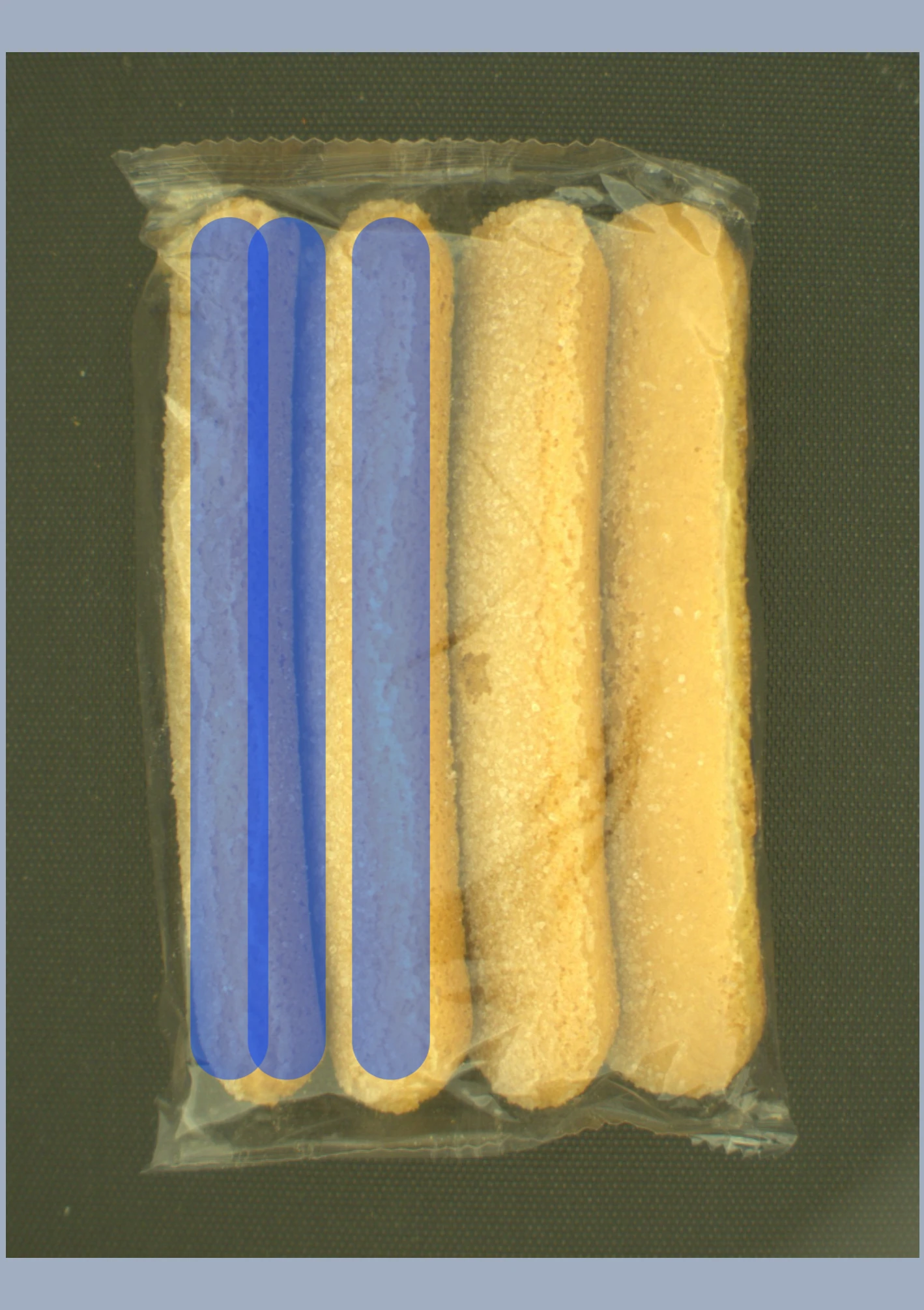
4. Split what joined by mistake
Painting the third biscuit without pressing N adds it to instance #2: two biscuits in one mask. In the «Labels» tab, the scissors of that row, «Split into one instance per stroke», turn each of its strokes into an instance of its own.
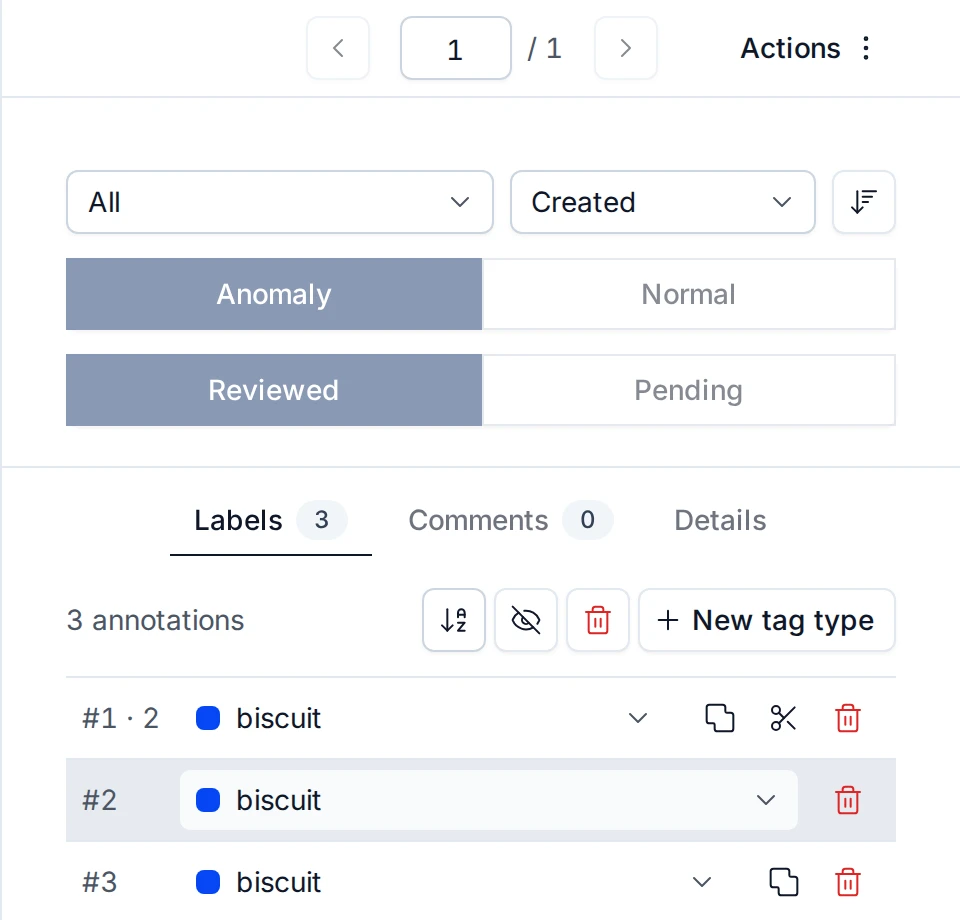
5. Merge two instances
The opposite case: in «Stroke» mode, the last biscuit painted in two strokes becomes two instances. Click one in «Labels» to select it, then the merge button of the other, «Merge into the selected instance»: they become one.
Good to know
- Shortcuts. N starts a new instance, Q and W go to the previous and the next one, E takes the eraser. N, Q and W work in «Instance» mode.
- Changing the tag. The tag of a row applies to the whole instance. Choosing another tag in the card also starts a new instance.
- Undo. Ctrl+Z undoes a split or a merge like any stroke.
- Remembered. The browser remembers the instance mode you chose, for every dataset.
Next steps
Recorded on Rosepetal release 1.8.15.